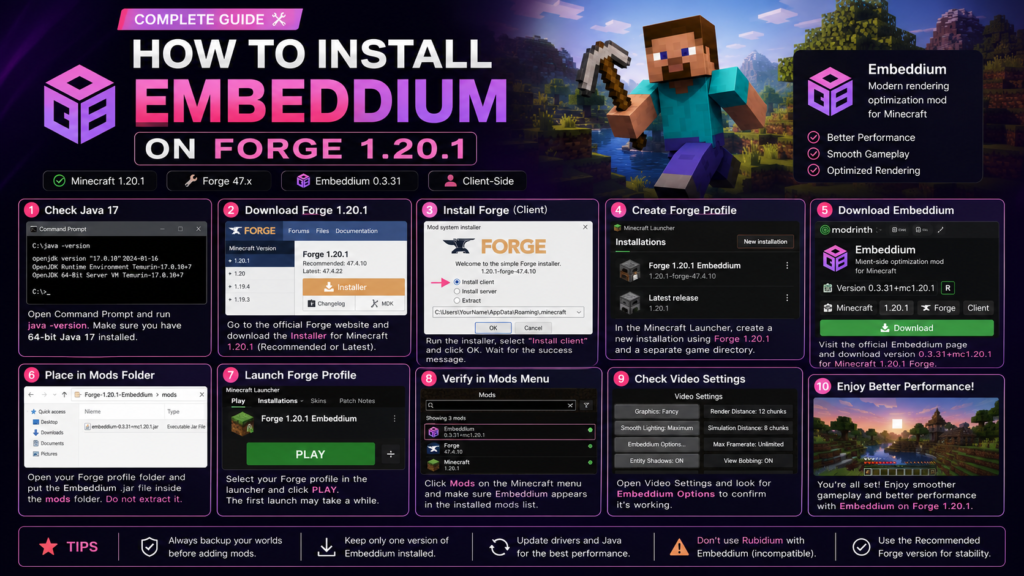
Learning how to install Embeddium on Forge 1.20.1 requires matching the correct versions of Minecraft, Java, Forge, and Embeddium. Once Forge is installed, the Embeddium JAR file must be placed inside the correct profile’s mods folder before Minecraft is launched.
Embeddium is a client-side rendering performance mod available for Minecraft 1.20.1 on Forge and NeoForge. The official Embeddium release page lists version 0.3.31+mc1.20.1 as compatible with Minecraft 1.20.1, Forge, and NeoForge.
Quick Installation Summary
To install Embeddium on Forge 1.20.1:
- Install or verify 64-bit Java 17.
- Launch vanilla Minecraft 1.20.1 once.
- Download the Forge 1.20.1 installer.
- Select Install client.
- Launch the new Forge profile once.
- Download Embeddium for Minecraft 1.20.1 and Forge.
- Place the Embeddium JAR inside the Forge profile’s
modsfolder. - Launch Minecraft using the Forge profile.
- Confirm Embeddium appears in the Mods menu.
- Open Video Settings to verify the new settings interface.
Do not extract the Embeddium JAR file.
Embeddium Forge 1.20.1 Requirements
| Requirement | Correct option |
|---|---|
| Minecraft edition | Java Edition |
| Minecraft version | 1.20.1 |
| Mod loader | Minecraft Forge 47.x |
| Java version | 64-bit Java 17 |
| Embeddium version | 0.3.31+mc1.20.1 |
| Platform | Forge |
| Environment | Client-side |
| File format | JAR |
| World backup | Recommended |
Forge’s official 1.20.1 documentation lists Java 17 and a 64-bit JVM as the correct environment for Minecraft Forge 1.20.1.
At the time this guide was reviewed, the official Forge 1.20.1 download page listed:
- Latest: Forge 47.4.22
- Recommended: Forge 47.4.10
For a straightforward installation, the Recommended version is usually the safer starting point unless another mod specifically requires a newer Forge 47.4.x release.
Step 1: Back Up Your Minecraft Worlds
Before installing Forge or adding mods, create a backup of your important Minecraft worlds.
On Windows, the default saves folder is usually located inside:
%appdata%\.minecraft\savesCopy the complete saves folder to another location, such as your Desktop, an external drive, or cloud storage.
Embeddium is a client-side rendering mod and should not normally modify world data, but a backup protects your saves when changing loaders, configurations, or other installed mods.
Step 2: Install and Check Java 17
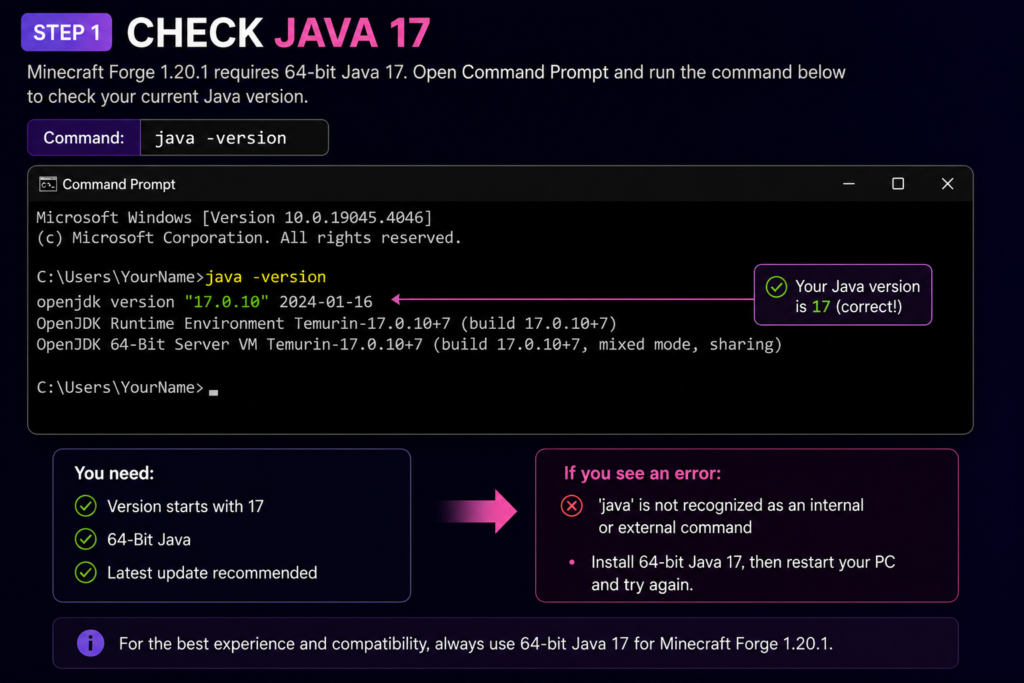
Minecraft Forge 1.20.1 uses Java 17. A newer Java installation does not always work correctly with older Forge installers, so verify that Java 17 is available before continuing.
Check Java on Windows
- Open the Start menu.
- Search for Command Prompt.
- Open Command Prompt.
- Enter:
java -versionA suitable result should begin with version 17, for example:
openjdk version "17.0.x"Forge’s official 1.20.1 documentation recommends a 64-bit Java 17 installation and specifically warns against using a 32-bit JVM.
When Java is not recognized
When Windows displays:
'java' is not recognized as an internal or external commandinstall a trusted 64-bit Java 17 distribution, restart the computer, and run java -version again.
Step 3: Run Vanilla Minecraft 1.20.1 Once
Open the official Minecraft Launcher and create a vanilla Minecraft Java Edition 1.20.1 installation.
Launch the game and wait until the main menu appears. Close Minecraft afterward.
This allows the launcher to download the required Minecraft 1.20.1 files before Forge is installed.
Make sure the selected version is exactly:
Minecraft 1.20.1Do not use Minecraft 1.20, 1.20.2, or another release. Minecraft mods are normally built for specific game versions.
Step 4: Download Forge for Minecraft 1.20.1
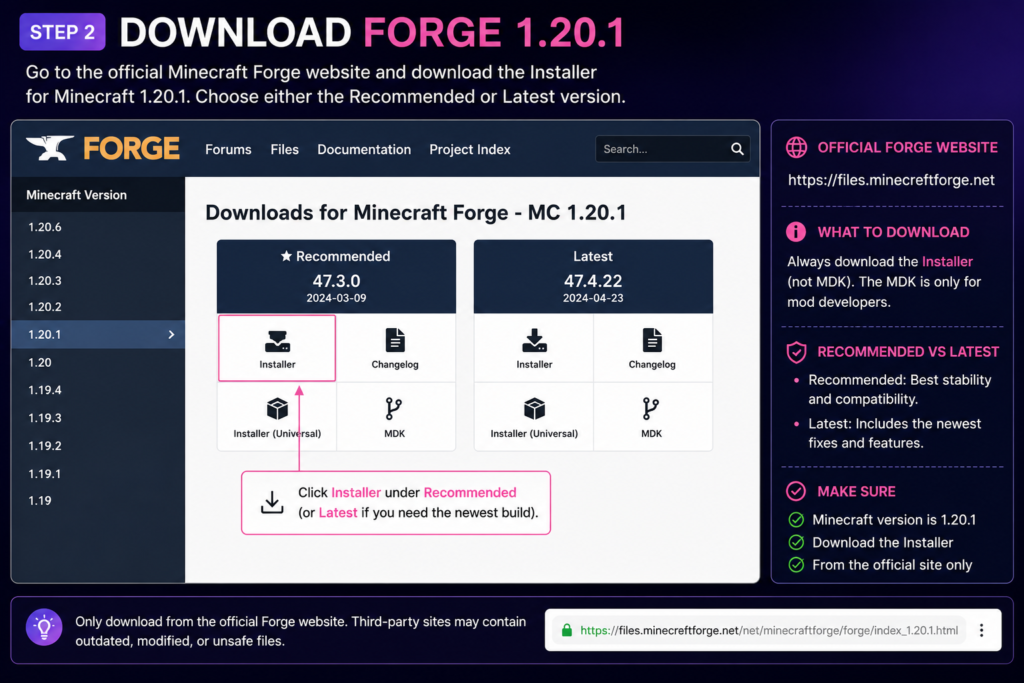
Open the official Minecraft Forge files page and select Minecraft version 1.20.1.
The official page provides separate downloads for:
- Installer
- Changelog
- MDK
Select the Installer file. The MDK is intended for mod development and is not required for installing Forge as a player.
Recommended or Latest Forge?
Use the Recommended Forge release for the most conservative setup.
Use the Latest release when:
- A mod specifically requires it
- A newer release fixes a known problem
- Your modpack documentation lists that version
- You have tested that all installed mods support it
Do not download Forge from unrelated file-sharing websites.
Step 5: Install the Forge Client
Close the Minecraft Launcher before opening the Forge installer.
Double-click the downloaded Forge installer JAR and follow these steps:
- Select Install client.
- Confirm the Minecraft directory.
- Click OK.
- Wait for Forge to download the required files.
- Close the installer after the success message appears.
- Reopen the Minecraft Launcher.
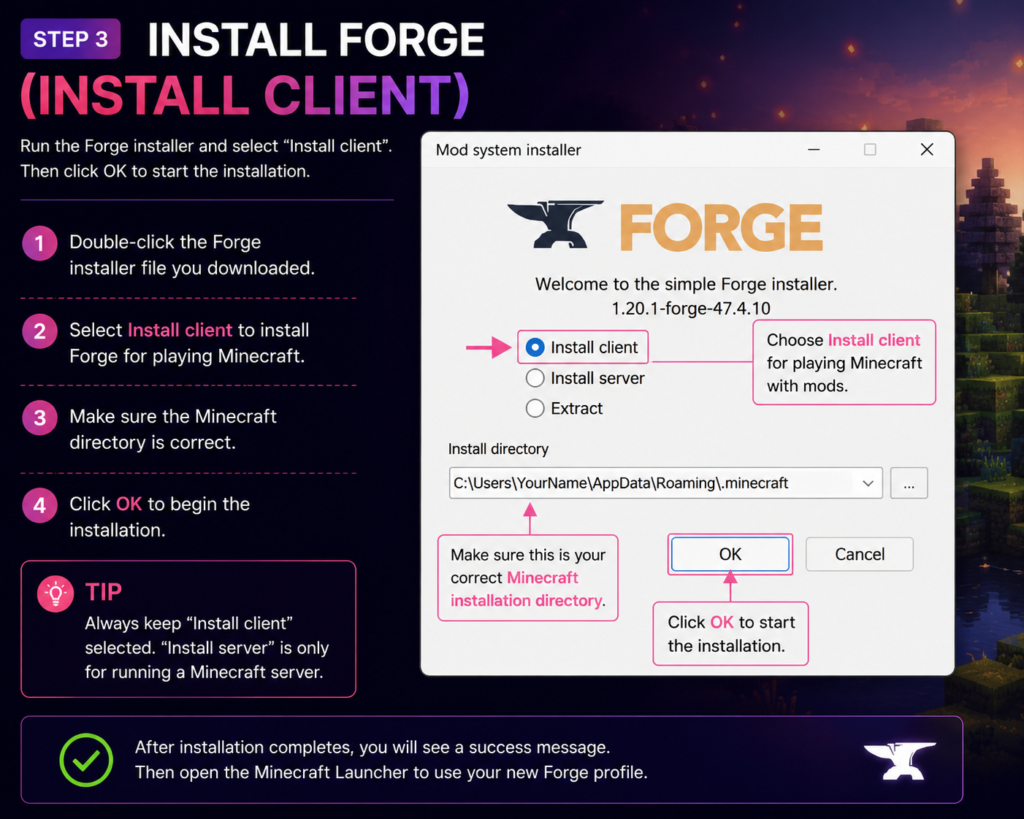
The installation directory will normally be:
C:\Users\YourName\AppData\Roaming\.minecraftForge installer does not open
When double-clicking the installer does nothing:
- Confirm Java 17 is installed.
- Right-click the installer.
- Select Open with.
- Choose Java.
- Run the installer again.
Do not open the Forge installer using WinRAR, 7-Zip, Notepad, or another archive application.
Step 6: Create a Separate Forge Profile
A separate game directory keeps your Forge mods, configurations, logs, and worlds separate from other Minecraft installations.
In the Minecraft Launcher:
- Open Installations.
- Select New Installation.
- Enter a name such as:
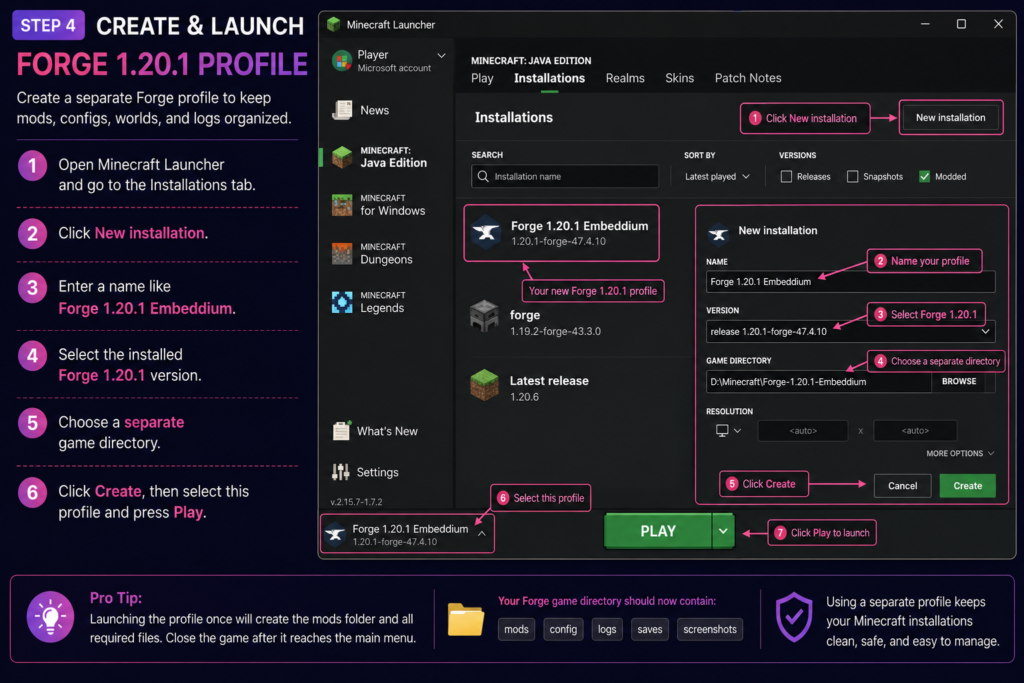
Forge 1.20.1 Embeddium- Select the installed Forge 1.20.1 version.
- Choose a separate game directory.
- Save the profile.
- Launch it once.
- Close Minecraft after reaching the main menu.
Example directory:
D:\Minecraft\Forge-1.20.1-EmbeddiumLaunching the profile once should create folders such as:
config
logs
mods
saves
Step 7: Download Embeddium for Forge 1.20.1
Open the official Embeddium version page and filter the files using:
- Minecraft: 1.20.1
- Loader: Forge
- Release type: Release
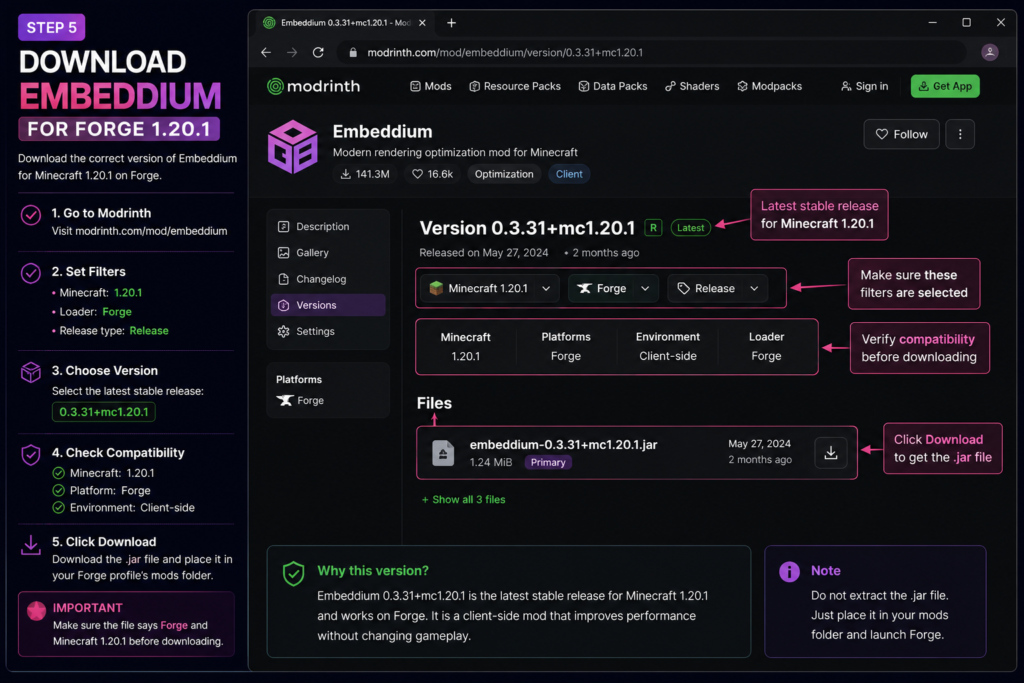
The official version listing identifies:
Embeddium 0.3.31+mc1.20.1as a release supporting Minecraft 1.20.1 on both Forge and NeoForge. It is listed as a client-side mod.
Check the compatibility information before downloading. The page should show:
Minecraft: 1.20.1
Platform: Forge
Environment: Client-side
Files you should not download
Avoid installing:
- A Fabric-only Embeddium file
- An Embeddium release for Minecraft 1.21.1
- A file built for Minecraft 1.20.6
- A NeoForge-only release
- Rubidium alongside Embeddium
- Multiple Embeddium versions
The official Embeddium 0.3.31 listing identifies Rubidium and TexTrue’s Embeddium Options as known incompatibilities.
Step 8: Place Embeddium in the Forge Mods Folder
Open the game directory selected for your Forge profile.
Find the folder named:
modsPlace the downloaded Embeddium JAR inside it.
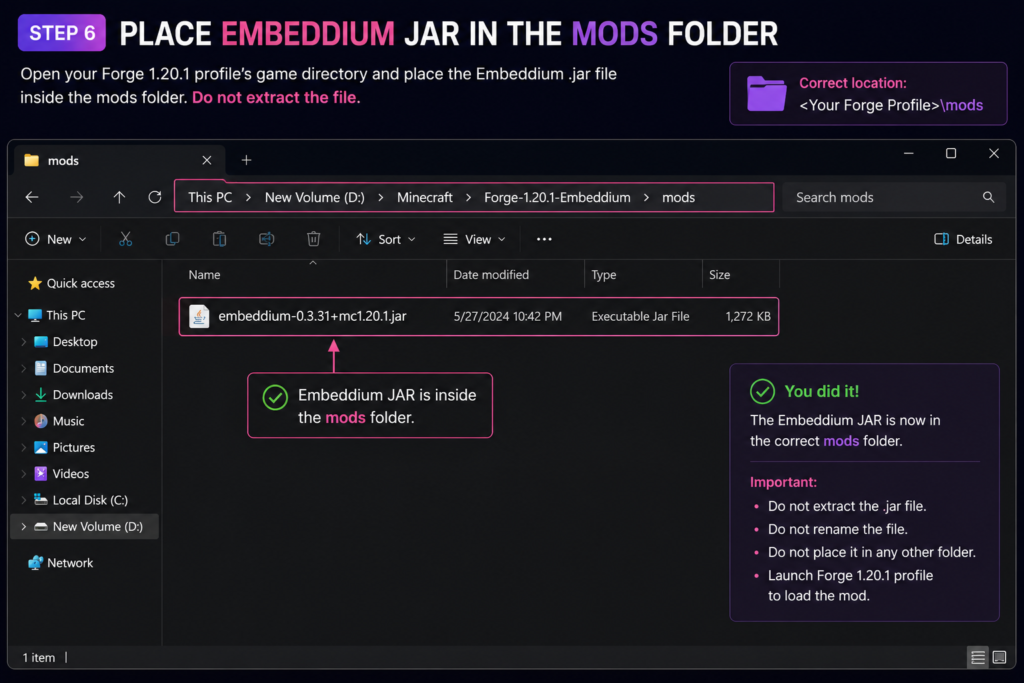
The final structure should look similar to:
Forge-1.20.1-Embeddium
└── mods
    └── embeddium-0.3.31+mc1.20.1.jar
Keep the Embeddium file in its original JAR format.
Do not:
- Extract the file
- Rename
.jarto.zip - Place it in the
configfolder - Put it inside another folder
- Keep two Embeddium versions together
- Put the Forge installer inside the mods folder
Step 9: Launch Minecraft Using Forge
Open the Minecraft Launcher and select:
Forge 1.20.1 EmbeddiumClick Play.
The first launch may take longer because Forge needs to load mods and generate configuration files.
Check the launcher profile before starting. Launching the normal vanilla 1.20.1 installation will not load Embeddium.
Step 10: Verify the Embeddium Installation
After Minecraft reaches the main menu:
- Click Mods.
- Search for Embeddium.
- Confirm it appears in the installed mods list.
- Return to the main menu.
- Open Options.
- Select Video Settings.
- Check for the Embeddium settings interface.
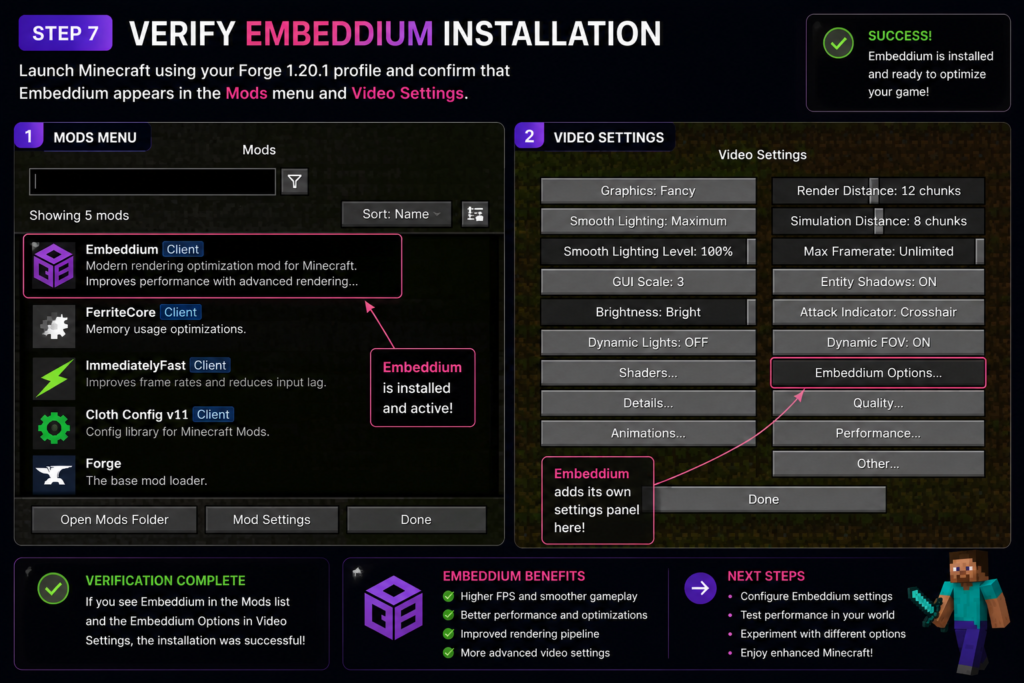
The official Embeddium release is classified as client-side, meaning its rendering and video-setting improvements run on the player’s local installation.
Recommended Starting Settings
Do not immediately enable or disable every setting. Begin with a balanced configuration and test the game.
| Setting | Recommended starting point |
|---|---|
| Graphics | Fast or Fancy |
| Render distance | 8–12 chunks |
| Simulation distance | 5–8 chunks |
| Clouds | Off or Fast |
| Particles | Decreased |
| Entity distance | 75–100% |
| Biome blend | 2–5 blocks |
| VSync | Test enabled and disabled |
| Frame-rate limit | Match monitor refresh rate |
| Mipmap levels | 2–4 |
Performance varies according to:
- CPU
- GPU
- Available RAM
- Graphics drivers
- Render distance
- Resource packs
- Shaders
- World complexity
- Installed mods
A setting that works well on one computer may not provide the same result on another.
Common Installation Problems
Embeddium Does Not Appear in the Mods Menu
Check that:
- Minecraft is running through the Forge profile.
- The profile uses Minecraft 1.20.1.
- The Embeddium file supports Forge.
- The file is inside the correct mods folder.
- The file ends with
.jar. - Only one Embeddium version is installed.
The most common cause is placing Embeddium inside the default .minecraft/mods folder while using a separate Forge game directory.
Minecraft Crashes on Startup
Remove every mod except Embeddium and launch Minecraft again.
When the game opens successfully, add the remaining mods back in small groups until the incompatible mod is identified.
Also check for:
- Rubidium
- Duplicate Embeddium files
- Wrong Minecraft versions
- Fabric mods inside Forge
- NeoForge-only mods
- Outdated shader integrations
- Conflicting rendering mods
Exit Code 1
Exit Code 1 is a general launcher error and does not identify one specific problem.
Common causes include:
- Incorrect Java version
- Wrong Forge version
- Incompatible mod
- Duplicate mod files
- Missing dependency
- Broken configuration
- Incorrect Minecraft profile
Open:
logs\latest.logand search near the final lines for:
Caused by:The mod or class name shown near that section may help identify the failure.
Forge Installer Does Not Finish
Try these steps:
- Confirm that vanilla Minecraft 1.20.1 has been launched once.
- Close the Minecraft Launcher.
- Verify Java 17.
- Download the installer again.
- Confirm that security software is not blocking Java.
- Check that your internet connection is stable.
- Run the installer again.
Use only the official Forge installer listed for Minecraft 1.20.1.
Mods Folder Is Missing
Launch the Forge profile once and close Minecraft.
When the folder still does not appear, create it manually inside the selected game directory:
modsUse lowercase letters and no spaces.
Embeddium Shows Visual Glitches
Test the game without:
- Shaders
- Resource packs
- Oculus
- Other rendering mods
- Graphics enhancement mods
Also update the graphics driver through the official AMD, Intel, or NVIDIA software.
Add the removed mods back one at a time to identify the conflict.
Embeddium and Rubidium Are Installed Together
Remove Rubidium.
Embeddium and Rubidium both change Minecraft’s rendering systems and should not be kept together. Rubidium is officially listed as incompatible with Embeddium 0.3.31.
How to Update Embeddium on Forge 1.20.1
To update Embeddium:
- Back up important worlds.
- Close Minecraft.
- Open the Forge profile’s mods folder.
- Remove the old Embeddium JAR.
- Download the newer compatible 1.20.1 Forge release.
- Place the new JAR in the mods folder.
- Launch Minecraft.
- Verify the mod through the Mods menu.
Do not keep the old and new versions together.
A file with a higher version number is not automatically compatible if it was built for a different Minecraft release.
How to Uninstall Embeddium
To remove Embeddium:
- Close Minecraft and the launcher.
- Open the Forge profile’s game directory.
- Open the
modsfolder. - Delete the Embeddium JAR.
- Launch the Forge profile again.
Removing Embeddium disables its rendering optimizations and video-settings interface. Your Minecraft worlds should remain available, but keeping a backup is still recommended.
Frequently Asked Questions
Does Embeddium Support Forge 1.20.1?
Yes. The official Embeddium 0.3.31 release lists Minecraft 1.20.1, Forge, and NeoForge as supported platforms.
Which Java Version Does Forge 1.20.1 Use?
Forge 1.20.1 uses Java 17. The official Forge documentation recommends a 64-bit Java 17 installation.
Which Embeddium Version Should I Use for Forge 1.20.1?
The official version listing provides Embeddium 0.3.31+mc1.20.1 for Minecraft 1.20.1 on Forge and NeoForge.
Should I Use Recommended or Latest Forge?
Start with the Recommended Forge release unless another installed mod requires a newer version. The official Forge page currently lists both Recommended and Latest 47.4.x installers for Minecraft 1.20.1.
Do I Need to Extract the Embeddium JAR?
No. Place the original JAR directly inside the Forge profile’s mods folder.
Can I Use Rubidium with Embeddium?
No. Rubidium is listed as a known incompatibility for the official Embeddium 0.3.31 release.
Does Embeddium Need to Be Installed on a Server?
Embeddium is listed as client-side. Players install it locally for rendering and video-performance improvements.
Why Is Embeddium Not Loading?
The usual causes are an incorrect Forge profile, the wrong game version, an incompatible Embeddium file, an incorrect mods folder, duplicate files, or a conflict with another rendering mod.
Will Embeddium Guarantee Higher FPS?
No fixed FPS improvement can be guaranteed. Results depend on the computer, drivers, settings, shaders, resource packs, world complexity, and installed mods.
Conclusion
How to Install Embeddium on Forge 1.20.1 comes down to matching Minecraft 1.20.1 with Java 17, a compatible Forge 47.x profile, and the correct Embeddium JAR.
Install Forge as a client, launch the Forge profile once, place Embeddium 0.3.31+mc1.20.1 inside the correct mods folder, and verify the installation through the Mods and Video Settings menus. Keep only one Embeddium version installed and remove incompatible rendering mods such as Rubidium.