Updating Embeddium can provide rendering fixes, mod-compatibility improvements, and a more stable Minecraft experience. However, replacing the wrong file, mixing loaders, leaving duplicate versions in the mods folder, or deleting configuration files can lead to crashes and lost video settings.
The safest update process is to verify your Minecraft version and loader, back up your profile, keep a copy of the old Embeddium file, replace it with a compatible new file, and test the game before changing anything else.
Embeddium supports Forge on Minecraft 1.20.1 and older, Fabric on Minecraft 1.20.1 through 1.20.6, and NeoForge on Minecraft 1.20.1 and newer. This means the newest file shown on a download page may not be suitable for your existing profile.
Before updating, use the Embeddium Compatible Minecraft Versions guide to confirm that your game version, loader, and Embeddium release belong together.
Quick Answer
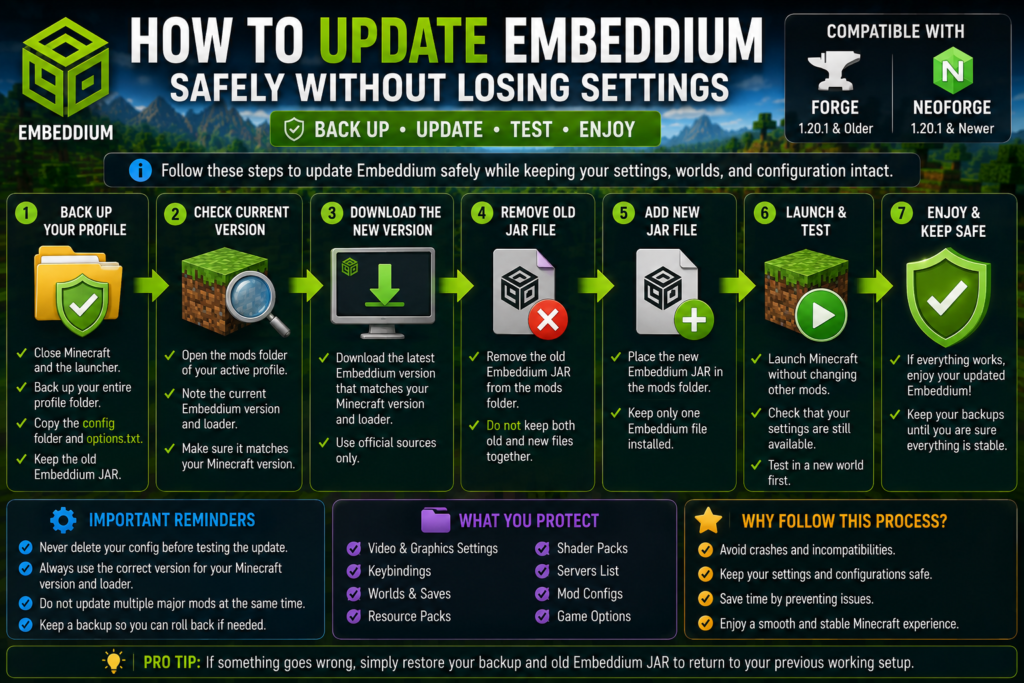
To update Embeddium safely without losing settings:
- Close Minecraft and the launcher.
- Confirm your Minecraft version and loader.
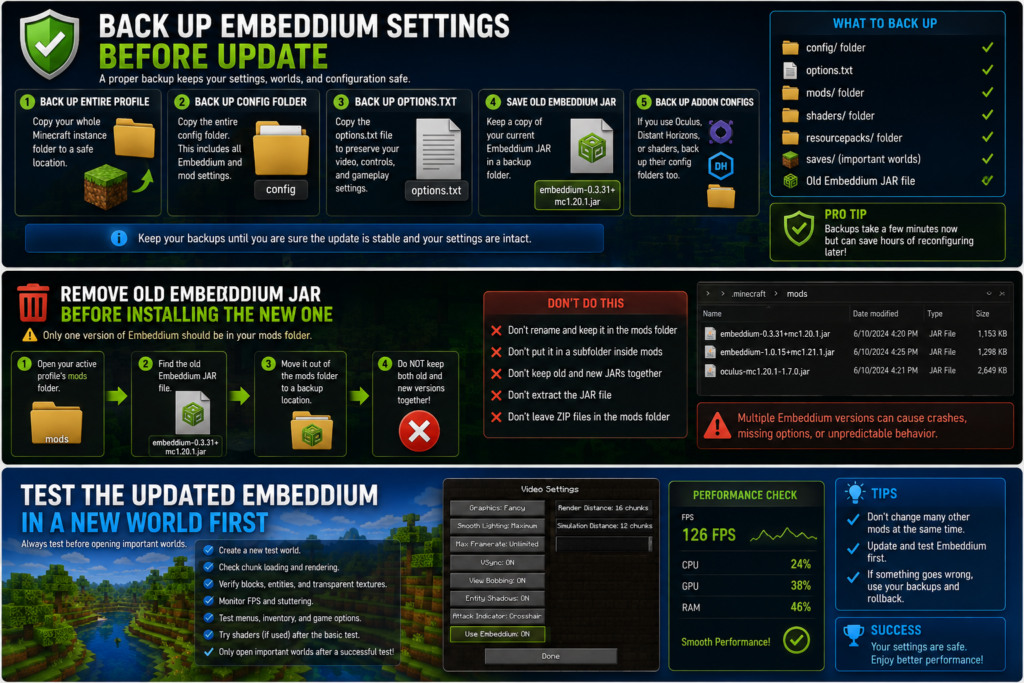
- Back up the complete Minecraft profile.
- Copy the
configfolder andoptions.txt. - Keep a copy of the old Embeddium JAR.
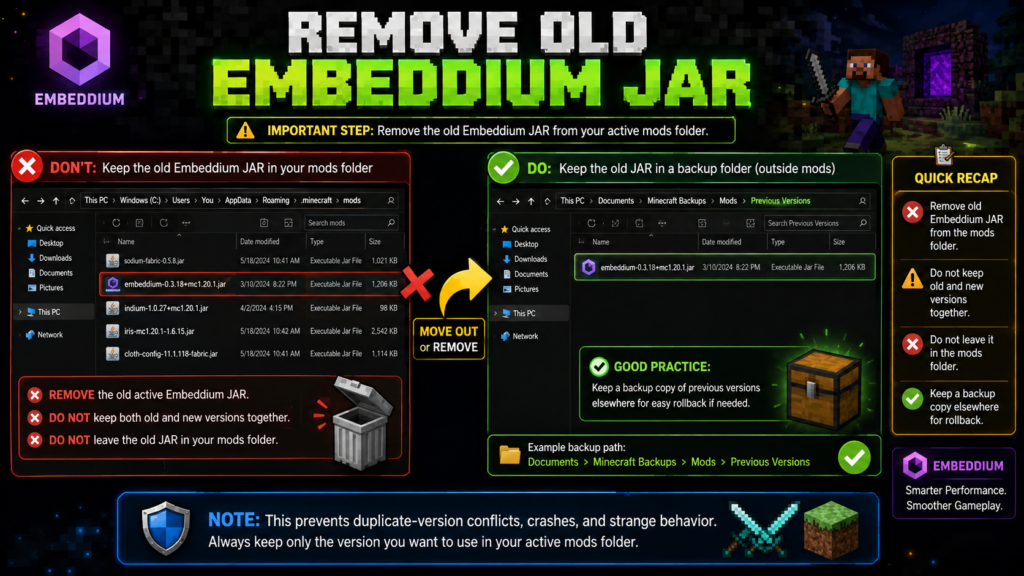
- Remove the old JAR from the active mods folder.
- Add one matching updated Embeddium JAR.
- Launch without changing other mods.
- Confirm that your video settings remain available.
- Roll back to the previous file if problems appear.
Do not delete your settings before testing the updated version. Most same-profile updates should be attempted with the existing configuration intact, while a backup protects you if the newer version cannot read an older option correctly.
Why Update Embeddium?
Embeddium is designed as a client-side performance mod and includes rendering optimizations, bug fixes, additional integration APIs, and frequent compatibility patches. The project also provides optional translucency-sorting support through its video settings.
An update may help with:
- Crashes caused by known compatibility problems
- Rendering errors
- Modpack compatibility
- Driver-specific workarounds
- Block and entity rendering
- Translucent block behavior
- Performance consistency
- Newer Forge or NeoForge builds
- Support for a newer Minecraft profile
However, updating only because a version number is higher is not always necessary. A stable working modpack should be updated for a clear reason, such as a confirmed bug fix, required dependency, security concern, or Minecraft version migration.
Will Updating Embeddium Delete Your Settings?
Replacing the Embeddium JAR normally does not intentionally delete Minecraft worlds or configuration files because the mod file and the profile’s configuration data are stored separately.
Embeddium-related graphics options are commonly stored in an Embeddium configuration file inside the profile’s config folder, often named embeddium-options.json. The exact files may vary between versions, launchers, and installed addons, so backing up the entire config folder is safer than copying only one JSON file. Project issue material has referenced embeddium-options.json as an active configuration file.
Your settings can still appear missing when:
- A different Minecraft profile is launched
- The new profile uses another game directory
- The
configfolder was manually deleted - A launcher created a separate instance
- The update changes the option format
- A mod or addon resets incompatible options
- You move from Forge to NeoForge
- You update to another Minecraft version
- You accidentally launch a clean installation
The backup process in this guide protects against these situations.
Understand the Three Types of Embeddium Updates
Not every update should be handled in the same way.
1. Patch Update on the Same Minecraft Version
Example:
- Minecraft remains 1.20.1
- Forge remains installed
- Embeddium changes from an older 0.3.x release to a newer compatible 0.3.x release
This is usually the simplest type of update. You keep the same profile, back up its settings, remove the old Embeddium JAR, and add the newer compatible JAR.
2. Loader Update on the Same Minecraft Version
Example:
- Minecraft remains 1.20.1
- Forge itself is updated
- Embeddium remains a Minecraft 1.20.1 Forge-compatible release
This requires additional testing because other mods may depend on a particular Forge build. Update the loader and Embeddium separately when possible so you can identify which change causes a problem.
3. Minecraft Version or Loader Migration
Example:
- Forge 1.20.1 changes to NeoForge 1.21.1
- Java 17 changes to Java 21
- Embeddium 0.3.31 changes to Embeddium 1.0.15
This is not a normal in-place update. It is a profile migration. Create a separate Minecraft instance rather than replacing files inside the old profile.
Embeddium 0.3.31 officially supports Minecraft 1.20.1 on Forge and NeoForge, while Embeddium 1.0.15 is a Minecraft 1.21.1 NeoForge release.
Check Your Current Embeddium Version
Before downloading anything, identify the version already installed.
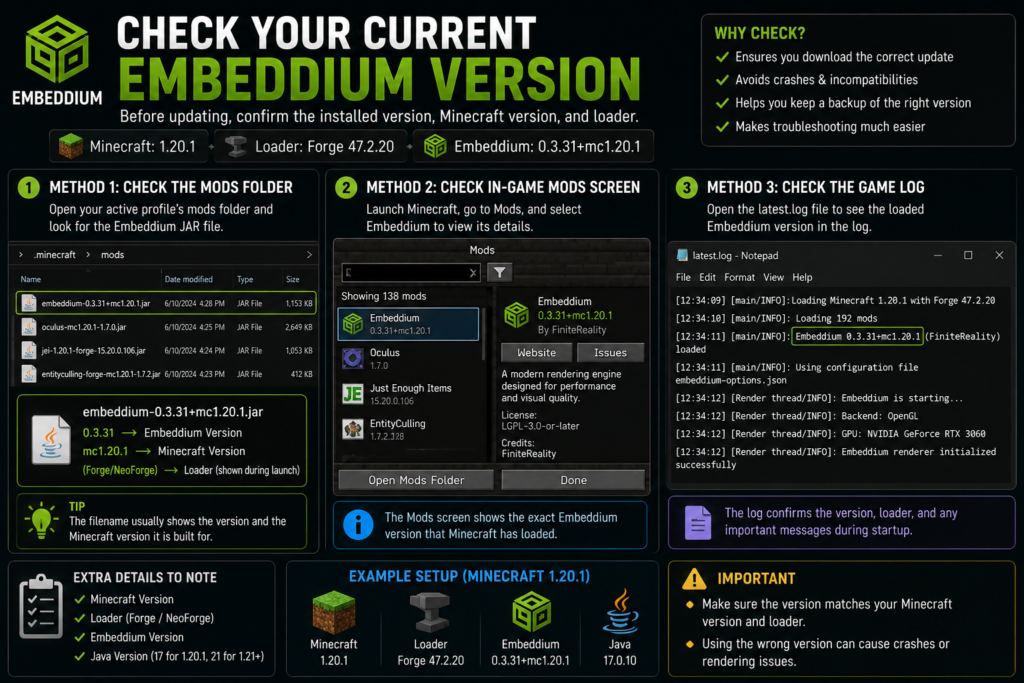
Method 1: Check the Mods Folder
Open the active profile’s mods folder and find the Embeddium JAR.
A filename may look similar to:
embeddium-0.3.31+mc1.20.1.jar
or:
embeddium-1.0.15+mc1.21.1.jar
The filename usually indicates:
- Embeddium release number
- Target Minecraft version
- Sometimes the loader or build type
Method 2: Check the Minecraft Mods Screen
Launch the game and open the Mods menu. Select Embeddium and note its displayed version.
Method 3: Check the Game Log
The latest.log file can show the loaded Embeddium version and whether its configuration was read successfully.
Do not assume that the filename in your Downloads folder is the active version. Always inspect the JAR inside the exact profile being launched.
Check the Correct Version Before Updating
The most important update rule is:
The Embeddium file must match both the Minecraft version and the mod loader.
As verified on August 2, 2026, common official releases include:
| Minecraft Version | Loader | Embeddium Release | Release Type |
|---|---|---|---|
| 1.20.1 | Forge or NeoForge | 0.3.31 | Stable release |
| 1.21.1 | NeoForge | 1.0.15 | Stable release |
| 1.21.4 | NeoForge | 1.0.12-beta.1 | Beta release |
Embeddium 0.3.31 is officially marked for Minecraft 1.20.1 on Forge and NeoForge. Embeddium 1.0.15 is officially listed for Minecraft 1.21.1 NeoForge, while the available 1.21.4 file is identified as a beta release.
A newer version number does not mean it supports your profile. For example, a 1.21.1 NeoForge file should not be placed into a Forge 1.20.1 installation.
Use the Embeddium 1.21.4 Compatibility Guide before testing the beta build on Minecraft 1.21.4.
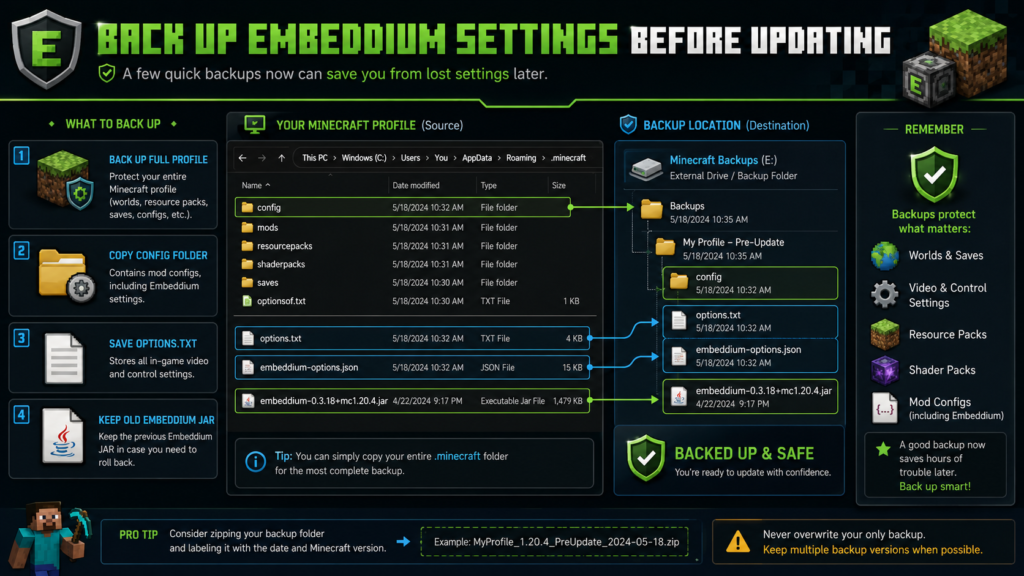
What to Back Up Before Updating
Create the backup while Minecraft and the launcher are fully closed.
1. Back Up the Complete Profile
Copy the full instance or game directory to another folder.
A complete backup can protect:
- Worlds
- Mods
- Configuration files
- Resource packs
- Shader packs
- Screenshots
- Keybindings
- Server list
- Launcher-specific settings
Name the backup clearly, for example:
Minecraft-1.20.1-Before-Embeddium-Update
2. Back Up the Config Folder
Copy the complete:
config
folder.
This is the most important folder for preserving mod settings.
Do not copy only one Embeddium file unless you are certain that no addon or related renderer stores additional configuration.
3. Back Up options.txt
The options.txt file stores many standard Minecraft video, audio, control, and interface preferences.
Embeddium-specific options may be stored separately, but keeping options.txt protects ordinary Minecraft settings as well.
4. Keep the Old Embeddium JAR
Move the previous JAR to a backup folder outside the active mods folder.
Example:
Embeddium-Old-Version-Backup
Do not leave the old and new versions active together.
5. Back Up Addon Configurations
When using Oculus, shader packs, Distant Horizons, or other rendering addons, copy their related configuration files too.
A full config folder backup usually covers the safest range.
How to Update Embeddium Safely
Step 1: Close Minecraft Completely
Exit:
- The Minecraft game
- Minecraft Launcher
- CurseForge
- Modrinth App
- Prism Launcher
- Any other launcher using the instance
Open Task Manager if necessary and make sure Minecraft or Java is not still running.
Editing files while the game is open can cause settings to be overwritten when Minecraft closes.
Step 2: Open the Correct Game Directory
Different launchers can use separate profile folders.
Common locations include:
- Standard
.minecraftfolder - CurseForge instance folder
- Modrinth App profile folder
- Prism Launcher instance folder
- A manually selected custom game directory
Open the launcher profile settings and confirm its exact game-directory path.
Updating a file in the wrong folder will not update the profile you actually play.
Step 3: Create the Backup
Copy the entire instance before modifying it.
At minimum, save:
configmodsoptions.txtsaves- Old Embeddium JAR
Do not skip this step even when the update appears minor.
Step 4: Download the Matching Embeddium Release
Choose a file that matches:
- Minecraft version
- Loader
- Release channel
- Profile purpose
Stable releases are generally more appropriate for regular modpacks. Beta releases should be tested in a separate profile unless the beta specifically fixes a problem you need resolved.
Embeddium’s official project listing identifies it as a client-side mod and shows its supported Minecraft versions and platforms.
Step 5: Remove the Old JAR From the Active Mods Folder
Move the old Embeddium file out of the active mods folder.
Do not:
- Rename it and leave it in the mods folder
- Put it inside a subfolder under
mods - Keep both old and new releases together
- Extract the JAR
- Place a ZIP archive directly in the mods folder
Minecraft loaders may still scan renamed or nested JAR files depending on the setup. Move the old file completely outside the active instance.
Step 6: Add the New Embeddium JAR
Place one new Embeddium JAR in the active mods folder.
The folder should contain only one primary Embeddium installation.
Embeddium 0.3.31 officially lists Rubidium and TexTrue’s Embeddium Options as known incompatibilities, so do not keep overlapping or explicitly incompatible rendering mods in the same profile.
Also check for:
- Rubidium
- Duplicate Embeddium files
- Wrong-loader Embeddium files
- Sodium installed in a Forge Embeddium profile
- OptiFine
- Old renderer addons
- Incompatible option-menu addons
Do not remove unrelated mods unless you are performing a clean compatibility test.
Step 7: Launch Without Changing Other Mods
The first launch should test only the Embeddium change.
Do not simultaneously:
- Update Oculus
- Add shaders
- Change Forge or NeoForge
- Install Distant Horizons
- Add performance addons
- Change resource packs
- Change Java
- Increase render distance
Changing one component at a time makes the source of any problem easier to identify.
Step 8: Check Whether Your Settings Were Preserved
After Minecraft reaches the main menu:
- Open Options.
- Open Video Settings.
- Check render distance.
- Check simulation distance.
- Check graphics quality.
- Check VSync and frame-rate limits.
- Check performance options.
- Check advanced Embeddium settings.
- Confirm keybindings and interface scale.
- Take screenshots before changing anything.
If your settings appear unchanged, create a temporary test world before loading an important save.
Step 9: Test a New World First
Create a temporary world and check:
- Chunk loading
- Block textures
- Transparent blocks
- Entity rendering
- Menus
- Frame rate
- Stuttering
- Lighting
- Water and glass
- Shader behavior
- World loading time
If everything works correctly, back up your main world and test it next.
For recommended post-update tuning, use the Best Embeddium Settings for Maximum FPS guide.
Low-end laptop and integrated-graphics users should use the safer Best Embeddium Settings for Low-End PCs configuration.
Updating Embeddium on Forge 1.20.1
For Forge 1.20.1:
- Use Java 17
- Keep Minecraft at 1.20.1
- Use a compatible Forge 47.x build
- Install a Minecraft 1.20.1 Forge-compatible Embeddium release
- Remove the previous Embeddium JAR
- Keep the existing config backup
Embeddium 0.3.31 is officially listed for Minecraft 1.20.1 on Forge and NeoForge.
Users performing a fresh setup should follow How to Install Embeddium on Forge 1.20.1.
Do not place a Minecraft 1.21.1 NeoForge file into the Forge 1.20.1 profile.
Updating Embeddium on NeoForge 1.21.1
For NeoForge 1.21.1:
- Use Java 21
- Keep Minecraft at 1.21.1
- Use a compatible NeoForge build
- Install Embeddium
1.0.15 - Remove older Embeddium files
- Retain a backup of the profile configuration
The official Embeddium 1.0.15 file is marked as a release for Minecraft 1.21.1 and NeoForge.
Use How to Install Embeddium on NeoForge 1.21.1 when creating a separate clean profile.
Updating From Forge 1.20.1 to NeoForge 1.21.1
Do not perform this migration by replacing only the Embeddium JAR.
Create a new profile because you are changing:
- Minecraft version
- Mod loader
- Java version
- Embeddium version branch
- Other mod dependencies
- Potentially the configuration format
Safe migration order:
- Keep the old Forge profile unchanged.
- Create a separate NeoForge 1.21.1 profile.
- Launch it once without mods.
- Install Embeddium 1.0.15.
- Test a new world.
- Add compatible mods gradually.
- Recreate video settings manually where necessary.
- Move a copied world only after checking mod compatibility.
Do not overwrite the original world or profile during migration.
Should You Copy Old Settings Into a New Minecraft Version?
Copying the complete old config folder into another Minecraft version is not always safe.
A newer Embeddium or loader release may:
- Add options
- Remove options
- Rename configuration fields
- Change default values
- Stop supporting an addon
- Require a new config structure
The safest approach is:
- Preserve the old config as a reference
- Launch the new version once with default settings
- Compare the settings manually
- Copy individual compatible files only when necessary
- Keep rollback backups
For an update within the same Minecraft version, retaining the existing config is reasonable. For a major Minecraft or loader migration, a clean profile is safer.
What to Do if Your Settings Disappear
First, do not immediately reconfigure everything.
Check these items:
Confirm the Correct Profile
Make sure the launcher opened the same game directory that contained your original settings.
Check the Config Folder
Look for:
- Existing Embeddium-related JSON files
- A newly generated replacement file
- Backup copies
- Files with
.bak,.old, or similar extensions
Restore the Config Backup
Close Minecraft, copy the backed-up config files into the correct profile, and launch again.
Compare options.txt
Restore options.txt if standard Minecraft settings, keybindings, audio options, or interface preferences disappeared.
Check for an Addon Conflict
An incompatible settings addon may interfere with Embeddium’s option screen or configuration.
Embeddium’s official 0.3.31 listing identifies TexTrue’s Embeddium Options as a known incompatibility for that release.
Reconfigure Manually if the Format Changed
When moving between significantly different Embeddium branches, manually recreate settings rather than forcing an older incompatible config into the new version.
What to Do if Minecraft Crashes After Updating
If Minecraft fails to launch:
- Close the launcher.
- Move the new Embeddium JAR out of the mods folder.
- Restore the previous Embeddium file.
- Test again.
- Check
latest.log. - Check the crash report.
- Confirm Minecraft and loader versions.
- Look for duplicate renderers.
- Test without Oculus or other addons.
- Create a clean profile if necessary.
Use the full Embeddium Crash on Startup: Causes and Fixes guide for error-specific troubleshooting.
If the crash begins only after enabling Oculus or shaders, follow the Embeddium and Oculus Crash on Minecraft 1.20.1 guide.
Reports on the official issue tracker show that some Embeddium, Oculus, addon, launcher, and mod combinations can produce configuration-specific crashes, so testing optional renderer addons separately remains important.
What to Do if Blocks Become Invisible After Updating
An update can reveal a conflict that was hidden in the previous setup.
Try:
- Disable shaders.
- Remove Oculus temporarily.
- Remove Rubidium or OptiFine.
- Confirm that only one Embeddium file is installed.
- Restore the old Embeddium configuration.
- Test default video settings.
- Update the GPU driver.
- Roll back to the previous working Embeddium release.
An open official issue has documented invisible terrain in a particular Forge 1.20.1 setup involving Embeddium and Oculus. That report does not prove a universal incompatibility, but it demonstrates why renderer combinations should be tested before an old working file is deleted.
How to Roll Back an Embeddium Update
Rollback should be quick if you kept the required backups.
Rollback Steps
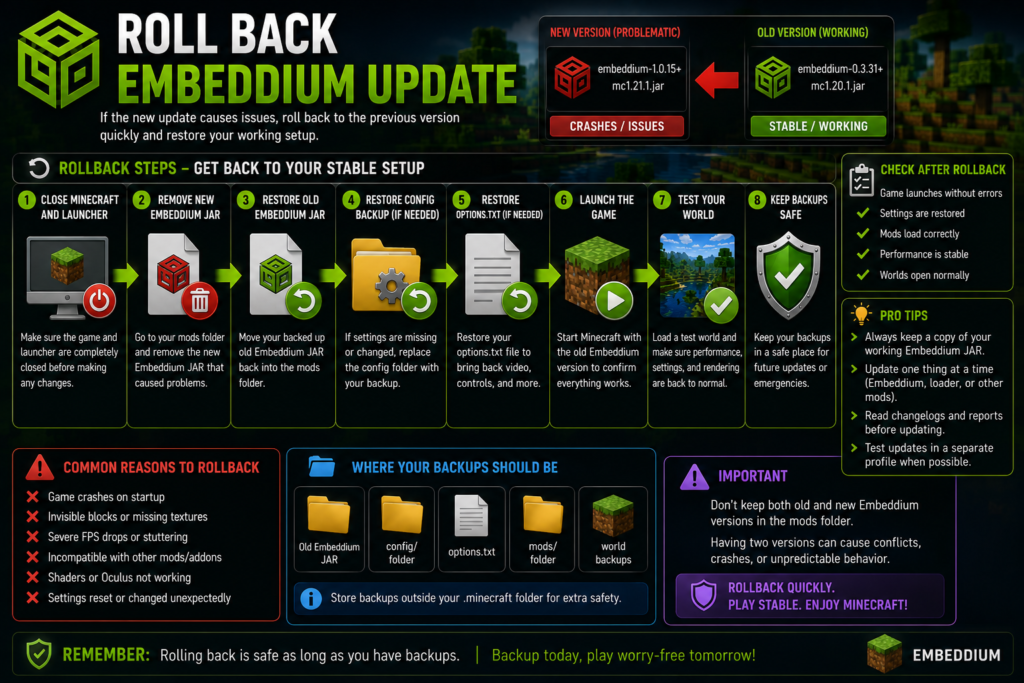
- Close Minecraft and the launcher.
- Remove the newly installed Embeddium JAR.
- Restore the previous Embeddium JAR.
- Restore the previous
configfolder if settings changed. - Restore
options.txtif necessary. - Launch without other recent changes.
- Test a temporary world.
- Confirm that the original profile works again.
Do not keep both the old and new Embeddium JARs in the mods folder.
Common Embeddium Update Mistakes
Avoid these common mistakes:
- Downloading the highest version number without checking Minecraft support
- Mixing Forge and NeoForge files
- Updating Minecraft and Embeddium inside the original profile
- Leaving two Embeddium JARs in the mods folder
- Deleting configuration files before testing
- Updating several rendering mods simultaneously
- Installing Rubidium with Embeddium
- Using a beta build in an important modpack without testing
- Forgetting the old JAR version
- Loading an important world without a backup
- Assuming every old addon works with the new release
- Updating Java without checking the Minecraft version
Safe Embeddium Update Checklist
Before updating:
- Confirm Minecraft version
- Confirm loader
- Record current Embeddium version
- Read the new release compatibility details
- Back up the full profile
- Back up the config folder
- Back up
options.txt - Save the old Embeddium JAR
- Back up important worlds
During the update:
- Remove the old active JAR
- Add only one new matching JAR
- Avoid changing other mods
- Keep shaders disabled for the first test
- Launch the correct profile
After updating:
- Check video settings
- Test a new world
- Check logs
- Test an important world only after backing it up
- Re-enable shaders and addons one at a time
- Keep the rollback files until the update is proven stable
Frequently Asked Questions
Can I update Embeddium without losing settings?
Yes. Back up the complete profile, especially the config folder and options.txt, then replace only the old Embeddium JAR with a compatible new version. Do not delete the configuration before the first test.
Where are Embeddium settings stored?
Embeddium-related settings are generally stored in the profile’s config directory, commonly in an Embeddium-related JSON file such as embeddium-options.json. Back up the entire config folder because exact files may vary by version and addons.
Should I delete the old Embeddium file?
Remove it from the active mods folder, but keep a backup elsewhere until the updated version has been tested successfully.
Can I keep two Embeddium versions installed?
No. Keep only one compatible Embeddium JAR in the active mods folder. Duplicate versions can cause loading errors and make troubleshooting difficult.
Do I need to delete the config folder when updating?
No. Do not delete it as a normal update step. Keep the existing config and create a backup. Reset the configuration only when troubleshooting a confirmed settings problem.
Can I update from Forge 1.20.1 to NeoForge 1.21.1?
Yes, but treat it as a separate profile migration rather than an in-place Embeddium update. Minecraft, the loader, Java, and many mods all change.
Which Embeddium version supports Forge 1.20.1?
Embeddium 0.3.31 officially supports Minecraft 1.20.1 on Forge and NeoForge.
Which Embeddium version supports NeoForge 1.21.1?
Embeddium 1.0.15 is an official Minecraft 1.21.1 NeoForge release.
Should I install a beta version?
Use a beta only when you need its specific changes and can test it in a separate profile. The listed Minecraft 1.21.4 Embeddium release is a beta rather than a normal stable release.
Why did my settings reset after updating?
You may have opened another profile, changed game directories, migrated to another Minecraft version, installed an incompatible addon, or loaded a version that generated a new configuration format.
Can I restore my old settings?
Yes. Close Minecraft and restore the backed-up config files and options.txt to the correct profile. Keep the newer files separately in case you need to compare them.
Why does Minecraft crash after the update?
Common causes include the wrong loader file, duplicate JARs, incompatible addons, an unsupported Minecraft version, or another renderer such as Rubidium or OptiFine.
Should I update Oculus at the same time?
Not during the first Embeddium test. Update and test Embeddium first, then update Oculus separately so any problem can be traced to one change.
Will updating Embeddium delete my worlds?
Replacing the Embeddium JAR should not intentionally delete worlds. However, back up important saves before changing a modded profile.
How do I return to the previous Embeddium version?
Remove the updated JAR, restore the old JAR, and restore the previous configuration backup if the update changed or reset settings.
Conclusion
Updating Embeddium safely is not simply a matter of placing a newer file into the mods folder. The file must match the Minecraft version and loader, and the old configuration and JAR should remain backed up until the new setup is confirmed stable.
For a normal update on the same Minecraft version, preserve the existing config, remove the old active JAR, install one matching new JAR, and test a temporary world. For a Minecraft or loader migration, create a separate profile and configure it independently.
The safest update process is:
Verify → Back Up → Replace → Test → Restore or Roll Back if Needed