
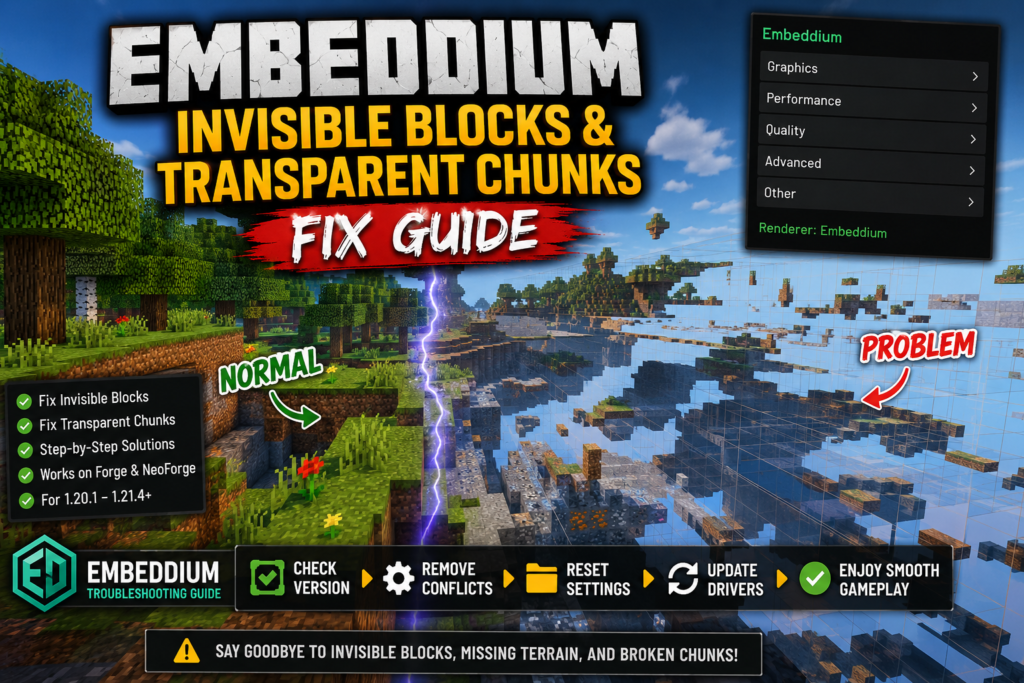
Invisible blocks, missing terrain, and transparent chunks in Minecraft can make Embeddium feel broken even when the mod is installed correctly. In most cases, this problem happens because of a version mismatch, shader conflict, incompatible mod combination, corrupted settings, or outdated graphics drivers.
If you are using Embeddium and parts of the world are disappearing, loading as transparent, or showing broken chunk rendering, this guide walks you through the safest fixes in the right order. Before trying random solutions, make sure your Minecraft version, loader, and Java setup are correct by checking our Embeddium Compatible Minecraft Versions guide.
Quick Answer
If Embeddium is causing invisible blocks or transparent chunks, try these fixes first:
- Confirm that your Embeddium version matches your Minecraft version and loader
- Remove duplicate rendering mods such as Rubidium or OptiFine
- Disable Oculus or shaders temporarily
- Reset Embeddium config files
- Update graphics drivers
- Test the game with only Embeddium installed
- Reinstall the correct Embeddium build for Forge or NeoForge
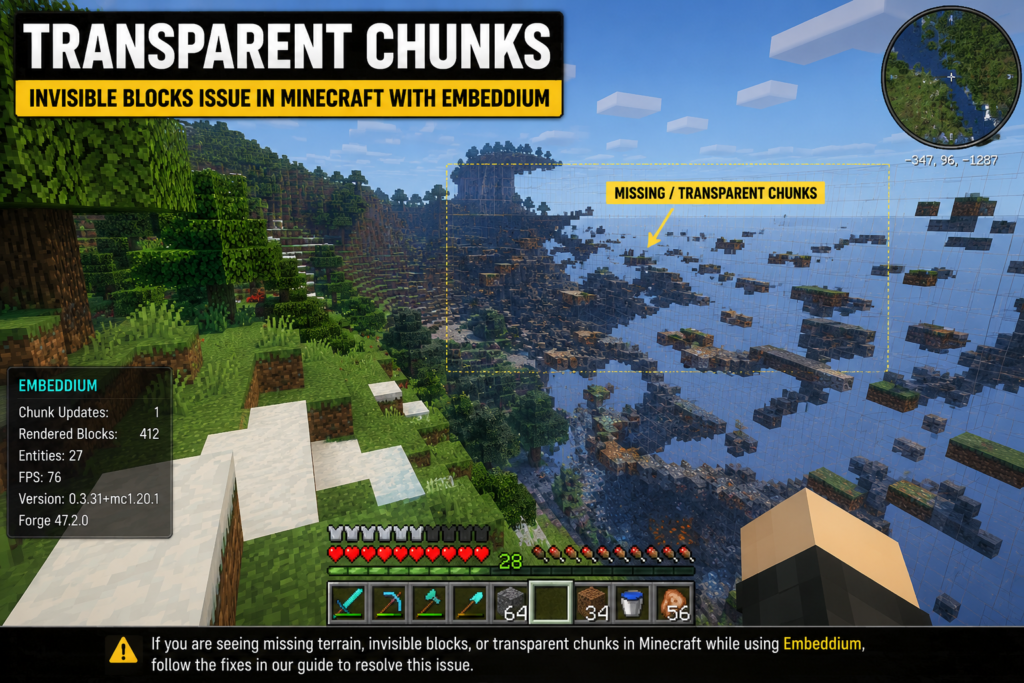
If your game crashes as well as showing rendering glitches, use our full Embeddium Crash on Startup: Causes and Fixes guide.
What Causes Invisible Blocks and Transparent Chunks in Embeddium?
This issue usually occurs when the rendering pipeline is interrupted by an incorrect file version, conflicting optimization mods, shaders, or broken settings. The most common causes are:
- Wrong Embeddium version for your Minecraft release
- Installing a Forge file on NeoForge, or the reverse
- Using shaders with an incompatible Oculus setup
- Running Embeddium with Rubidium, OptiFine, or another overlapping renderer
- Old GPU drivers
- Broken video settings or corrupted config files
- Chunk-loading conflicts from another visual or world-rendering mod
- Moving to a newer version without checking compatibility first
If you are unsure whether your file is correct, review the exact supported combinations in our Embeddium 1.21.4 Compatibility Guide and the broader Embeddium Compatible Minecraft Versions article.
Step 1: Check Your Minecraft Version, Loader, and Embeddium File
The first and most important fix is to confirm that you are using the correct Embeddium build for your setup. Many rendering bugs come from using the wrong file on the wrong loader.
For example:
- Forge 1.20.1 needs a compatible Forge build of Embeddium
- NeoForge 1.21.1 needs the correct NeoForge build
- Minecraft 1.21.4 should not use an older stable file meant for 1.21.1
If you need help with a clean installation, use the matching guide below:
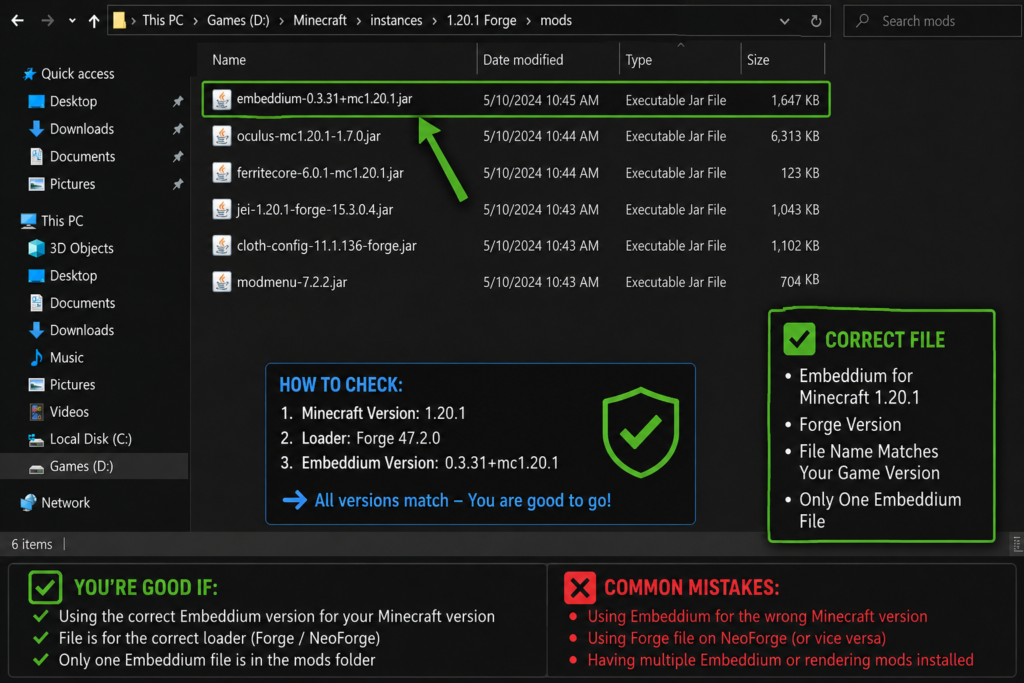
A single wrong JAR can cause invisible terrain, chunk flickering, or blocks that appear only after relogging.
Step 2: Remove Mod Conflicts
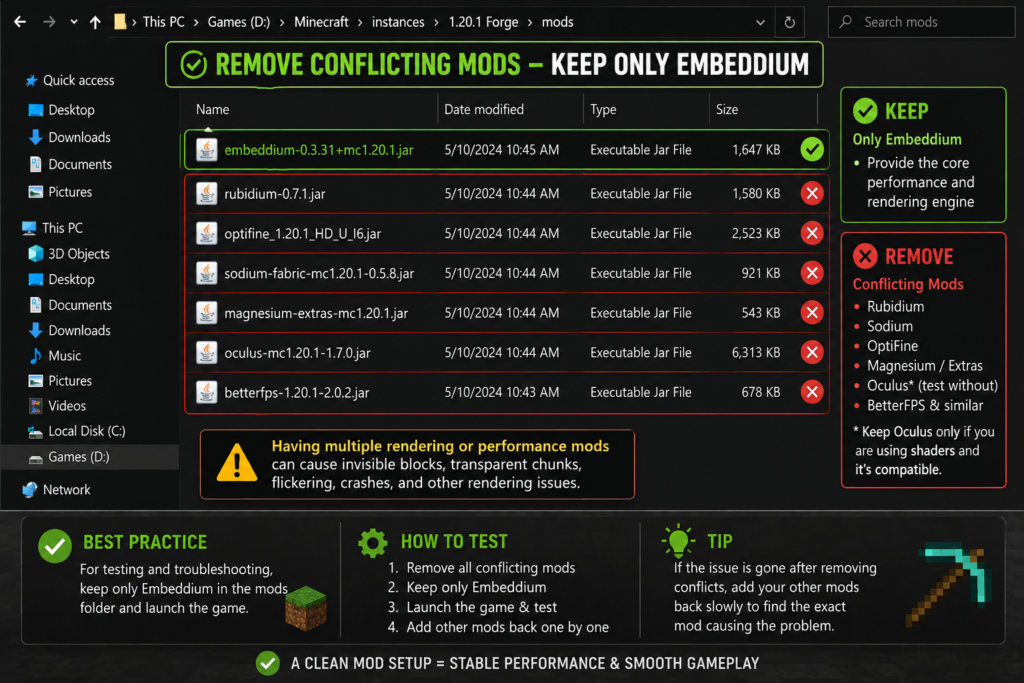
Embeddium should not be used alongside another mod that replaces the same rendering system. If you have more than one renderer or optimization mod installed, transparent chunks and invisible blocks can appear.
Check your mods folder for possible conflicts such as:
- Rubidium
- OptiFine
- Old performance mods doing the same rendering job
- Duplicate Embeddium files
- Visual enhancement mods that hook deeply into chunk rendering
If you were previously using OptiFine and recently switched, you may also want to read our Embeddium vs OptiFine for Minecraft 1.20.1 comparison to understand the differences in setup and shader handling.
The safest test is simple:
- Keep only Embeddium
- Remove duplicate renderer mods
- Launch the game
- Load a world and check whether chunks render normally
If the problem disappears, the issue was almost certainly caused by a mod conflict.
Step 3: Disable Oculus and Shaders Temporarily
If invisible blocks started appearing after enabling shaders, the problem may be related to Oculus, shader settings, or an incompatible shader pack.
Try this test:
- Disable shaders completely
- Launch the same world again
- Move around the area where transparent chunks appeared
- Check whether the issue still happens
If the world renders correctly with shaders disabled, the problem is likely connected to your shader setup rather than Embeddium alone. In that case, read our dedicated Embeddium and Oculus Crash on Minecraft 1.20.1 guide.
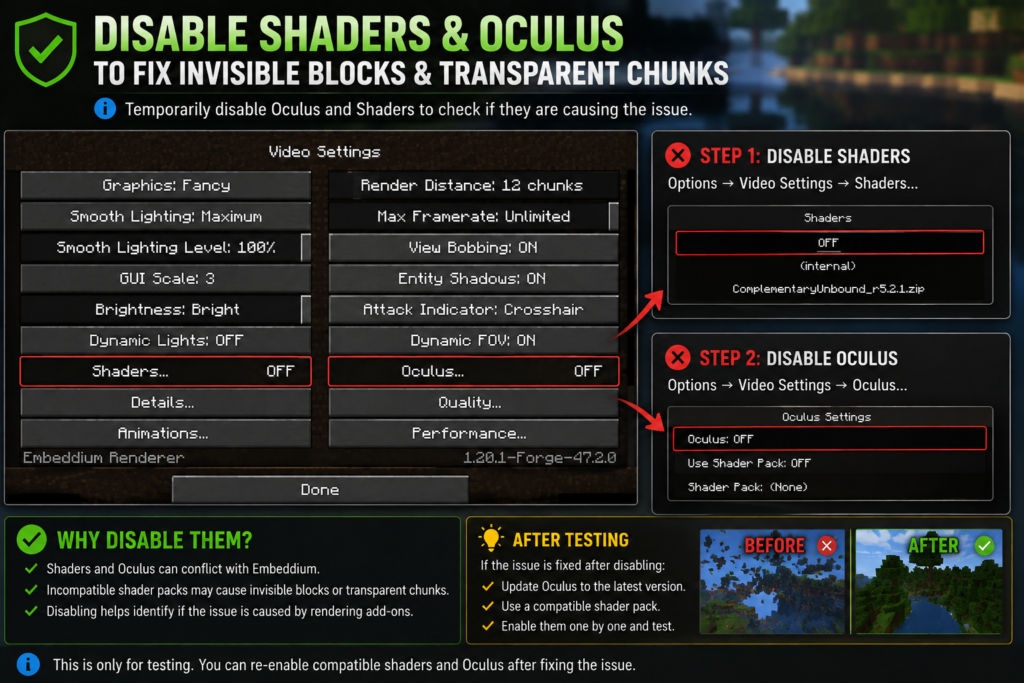
You should also avoid mixing aggressive shader presets with weak hardware. After fixing the issue, you can use safer tuning from our Best Embeddium Settings for Maximum FPS or Best Embeddium Settings for Low-End PCs guides.
Step 4: Reset Embeddium Settings
Sometimes the issue is not the mod itself but a broken or overly aggressive setting. If you changed graphics options recently and invisible chunks started appearing after that, reset the configuration.
You can do this by:
- Closing Minecraft fully
- Going to the config folder inside your Minecraft directory
- Finding the Embeddium config files
- Deleting or renaming them
- Restarting the game so fresh config files are created
This resets the mod to default settings and often resolves chunk visibility bugs caused by corrupted options.
After the reset, test the game first with default settings. Once the world loads correctly, you can slowly apply optimizations again using our Best Embeddium Settings for Maximum FPS guide or the Best Embeddium Settings for Low-End PCs guide.
Step 5: Update Your Graphics Drivers
Outdated GPU drivers can cause chunk rendering problems, especially when using performance mods, shader loaders, or newer Minecraft versions. This is more common on:
- Older NVIDIA drivers
- Old AMD driver builds
- Intel integrated graphics with outdated driver packages
- Laptops that switch between integrated and dedicated graphics incorrectly
If Minecraft is using the wrong GPU, rendering problems may appear even when the mod setup is otherwise correct. Update your graphics driver directly from your GPU manufacturer, then restart your PC and test Minecraft again.
This step is especially important if the issue started after updating Minecraft, switching loaders, or installing a newer Embeddium version.
Step 6: Test Without Resource Packs or World-Rendering Addons
Some resource packs and world-rendering addons can interfere with the way chunks appear. If blocks are invisible only in certain areas, dimensions, or biomes, another visual layer may be causing the problem.
Try the following:
- Disable all resource packs
- Disable minimap/world-rendering addons
- Turn off distant terrain or experimental visual mods
- Test the same world again
- Create a new world to compare behavior
If the issue only appears with a specific setup, then Embeddium may not be the direct cause. It is simply exposing a compatibility issue with another mod or pack.
Step 7: Reinstall Embeddium Cleanly
If nothing above works, do a clean reinstall instead of dropping a new file on top of an old setup.
Clean reinstall steps
- Exit Minecraft
- Remove the current Embeddium JAR
- Remove duplicate renderer mods
- Delete old config files related to Embeddium
- Download the correct file again
- Put only the correct file in the mods folder
- Launch the game with no shaders first
- Test chunk rendering in a clean world
Use the installation guide that matches your setup:
If you are working with a newer release, confirm support in our Embeddium 1.21.4 Compatibility Guide.
Step 8: Test a Clean Profile
When troubleshooting visual bugs, a clean profile gives the most reliable answer.
Create a test profile with:
- One Minecraft version
- One loader
- Only Embeddium installed
- No shaders
- No resource packs
- No other performance mods
If the issue disappears, add your other mods back one by one until the problem returns. That method helps you identify the exact conflict instead of guessing.
This approach also helps if your main profile is suffering from multiple issues at the same time. If your game also closes unexpectedly, refer to our full Embeddium Crash on Startup: Causes and Fixes guide.
Signs the Problem Is Fixed
You will usually know the issue is resolved when:
- Chunks load fully without disappearing
- Terrain does not become see-through while moving
- Blocks remain visible after re-entering the world
- No flickering or random transparent sections appear
- Shaders work again after safe re-testing
- The same area renders properly in repeated tests
At that point, you can fine-tune performance again using either the Best Embeddium Settings for Maximum FPS guide or the Best Embeddium Settings for Low-End PCs guide.
Common Mistakes to Avoid
Many users make the problem worse by trying too many changes at once. Avoid these mistakes:
- Installing the wrong Embeddium build
- Keeping Rubidium or OptiFine in the mods folder
- Testing shaders before checking base stability
- Updating to a new Minecraft version without checking compatibility
- Copying random config files from other users
- Replacing files without removing old duplicates first
If you are unsure about supported versions, return to the Embeddium Compatible Minecraft Versions guide before changing anything else.
Frequently Asked Questions
Why are chunks transparent in Embeddium?
Transparent chunks are usually caused by version mismatches, shader conflicts, incompatible rendering mods, or corrupted Embeddium settings. Start by checking your mod version and disabling other visual mods.
Can Oculus cause invisible blocks with Embeddium?
Yes, it can. If the issue starts after enabling shaders, disable Oculus or shaders temporarily and test again. You can also use our Embeddium and Oculus Crash on Minecraft 1.20.1 guide for deeper troubleshooting.
Should I use Embeddium with OptiFine?
Usually no. Running overlapping rendering systems together can cause visual problems, instability, or conflicts. If you are deciding between them, read our Embeddium vs OptiFine for Minecraft 1.20.1 comparison.
Will reinstalling Embeddium fix invisible blocks?
A clean reinstall often helps, especially if the mod file is wrong, duplicated, or your config files are corrupted. Use the proper installation guide for your loader.
What should I do if the game also crashes?
If Minecraft crashes as well as showing transparent chunks, follow our full Embeddium Crash on Startup: Causes and Fixes guide.
Conclusion
Embeddium invisible blocks and transparent chunks are usually fixable once you test the right things in the right order. Start with version compatibility, remove mod conflicts, disable shaders, reset config files, and reinstall Embeddium cleanly if needed.
The safest path is to confirm your setup first, then test using only the correct mod file. If you still face issues, go back to the core support articles below: